
Automatic Expense Tracking for Card Payments
Let Japka suggest your card and wallet payments. Setup for Android (Google Wallet, Samsung Wallet, Chase, Capital One, Amex and more) and iPhone (Apple Wallet + Shortcuts).
Short answer: turn on Detect payments in Japka’s Settings. On Android, allow notification access so Japka can spot payments from your wallet and card apps. On iPhone, create a Shortcuts automation that runs when you pay with Apple Wallet. Either way Japka asks “Add this payment?” and you confirm with one tap.
No bank connection is involved, and nothing is added without your approval. It is the automatic half of tracking expenses without a bank connection.
How it works
Your phone already tells you when you pay: a notification from Google Wallet or your card app, or an Apple Wallet transaction. Japka listens for exactly those signals, reads the amount and merchant, and sends you a notification offering to add the payment. Tap it and Japka opens with the amount and merchant already filled in. Pick a category if needed, save, done.
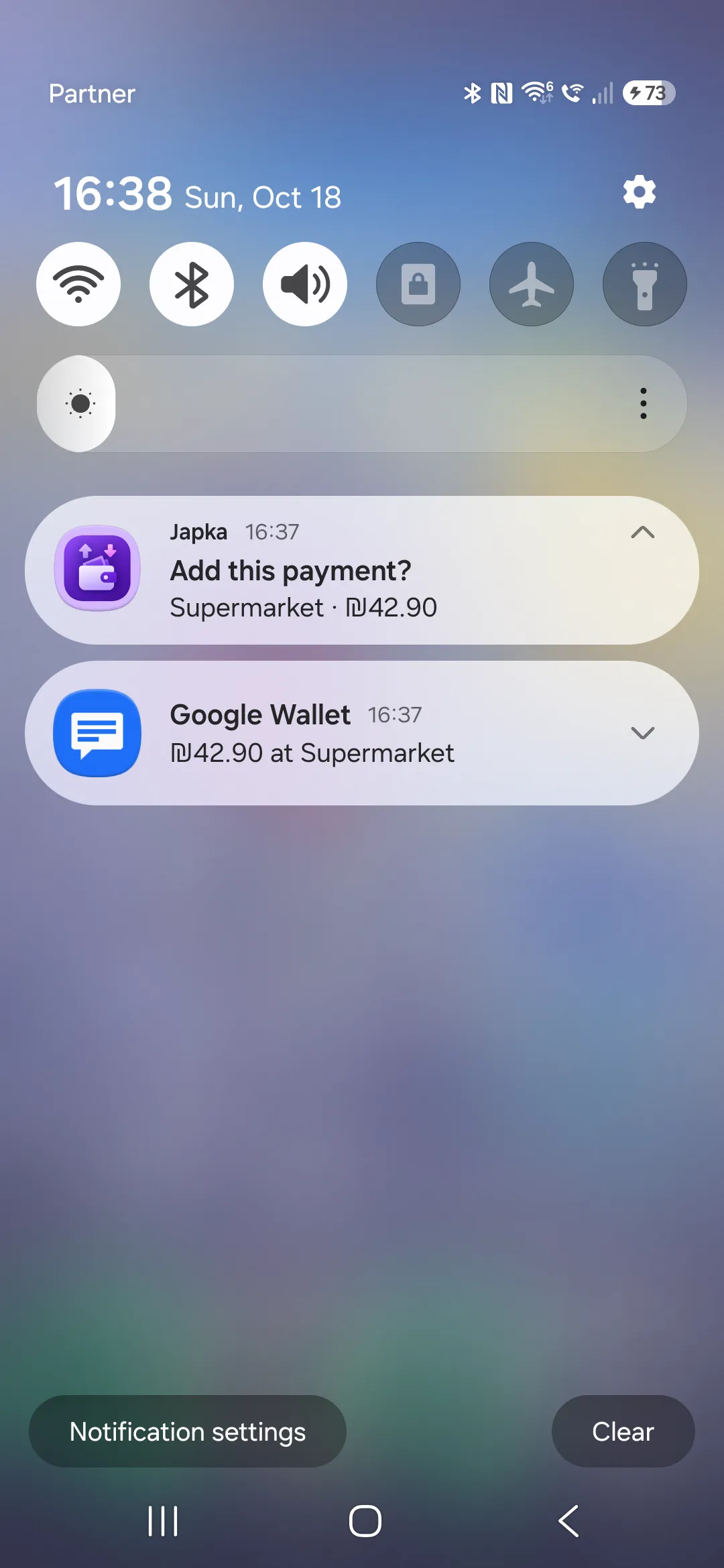
It is free, optional and you can turn it off any time.
Set up on Android
- Open Japka and go to Settings.
- Turn on Detect payments. Japka explains what it reads; tap Open settings.
- Japka opens the system screen for notification access. Find Japka and allow it.
- Allow Japka to send notifications if Android asks.
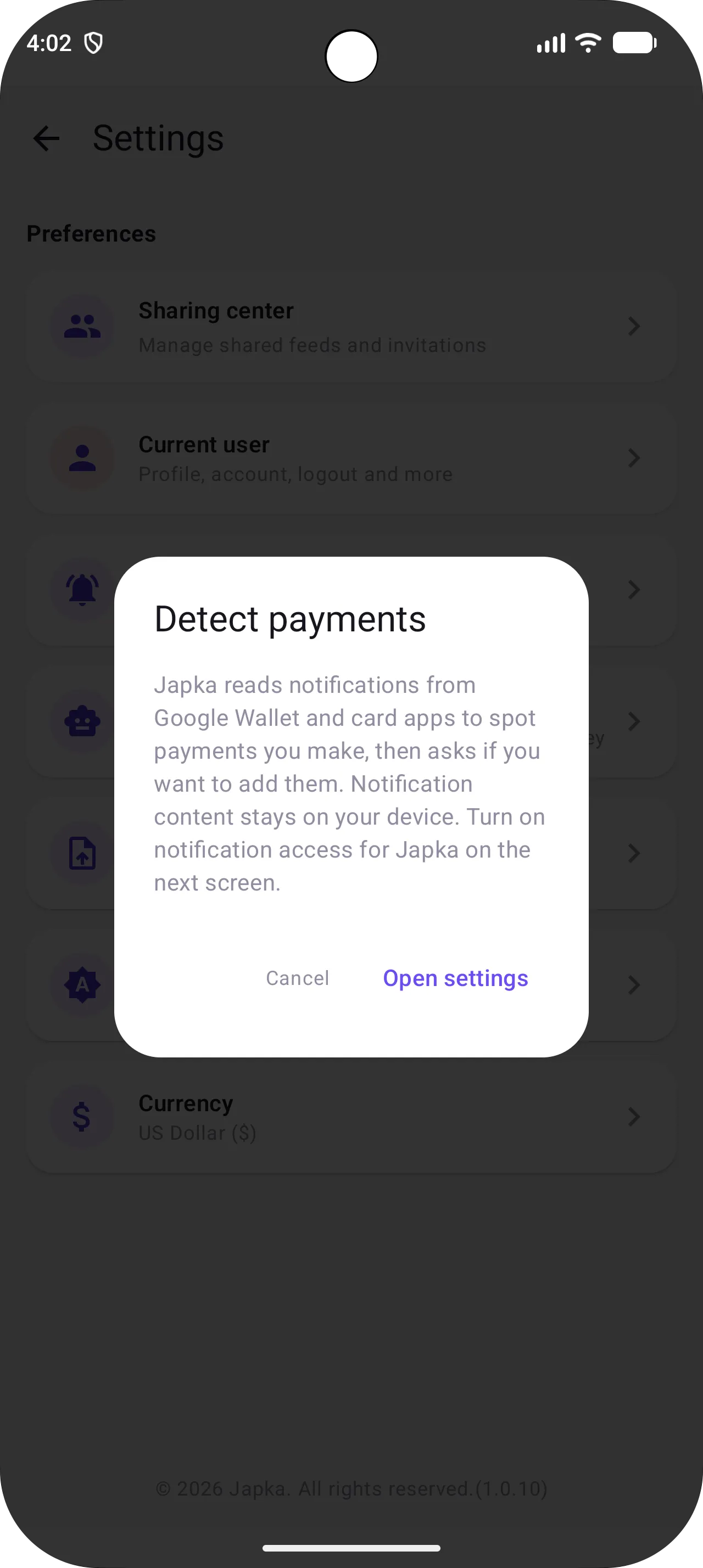
Japka only reads notifications from these apps:
- Google Wallet
- Samsung Wallet
- Chase
- Capital One
- American Express
- Citi
- Bank of America
- Discover
- Wells Fargo
- Max, Cal and Isracard (Israel)
Notifications from any other app, including your chats, are ignored. The content of notifications stays on your device; only the payments you choose to add are saved to your account.
We kept it to a fixed list on purpose. Listening to every app would catch more, but it would also turn chat messages that mention a price into fake expenses and suggest the same payment twice when two apps report it. A short list means fewer wrong suggestions. If your card app is missing, tell us and we can add it.
Set up on iPhone
iOS doesn’t let apps read other apps’ notifications, so Japka uses Apple’s Shortcuts app, which can run an automation when you pay with Apple Wallet (Apple Support: Transaction triggers in Shortcuts).
- In Japka, go to Settings and turn on Detect payments. Tap Set up in Shortcuts and Japka opens the Shortcuts app. If you blocked Japka’s notifications earlier, iPhone Settings opens instead: allow notifications, return to Japka and tap again.
- In Shortcuts, open the Automation tab and tap New Automation (or +).
- Choose Transaction, select the cards you want to track, and choose Run Immediately.
- Tap Next, then New Blank Automation, and add the action Log Payment in Japka.
- Tap Amount, pick Shortcut Input, then tap it again and choose Amount. Do the same for Merchant and choose Merchant.
- Tap Done.
Now, every time you tap to pay with those cards, Japka gets the amount and merchant and asks if you want to add it.
What gets detected (and what doesn’t)
| Situation | Suggested? |
|---|---|
| Card or wallet charge on Android from a listed app | Yes |
| Apple Pay tap on iPhone with a card in the automation | Yes |
| Refund, credit, declined or cancelled charge on Android | No, skipped on purpose |
| Declined Apple Pay tap on iPhone | Sometimes, iOS may still run the automation. Just ignore it |
| Physical card swipe or insert on iPhone | No, add with + |
| Cash, bank transfer, standing order | No, add with + or import a CSV |
| Notifications from chats, SMS or other apps | No, never read |
Japka recognizes amounts written in ₪, $, € and £ (or ILS, NIS, USD, EUR, GBP), in English and Hebrew wording. You need to be signed in to Japka for suggestions to appear.
Not working? Check these
First look at the Detect payments card in Settings: a green ✓ means it is on, a red ✗ means it is off. On iPhone the ✓ only confirms Japka can notify you; it can’t see your Shortcuts automation.
Android checklist
- Notification access is on for Japka. Some phones turn it off after an update, a reinstall or a battery saver. Go to Android Settings → Notifications → Device & app notifications (the name varies by phone) and turn Japka back on.
- Japka can send notifications. In Settings → Apps → Japka → Notifications, allow them.
- You are signed in to Japka. Suggestions only appear when you are signed in.
- The card app announces the payment. Pay once and pull down the notification shade. If no notification from Wallet or your card app appears, Japka has nothing to read. Check that app in the table below.
- Alerts come as app notifications, not SMS. Japka never reads SMS. If your card company offers both, choose push notifications in its app.
| App | What to check |
|---|---|
| Google Wallet | Make sure Wallet’s Purchases notifications are on in Settings → Apps → Google Wallet → Notifications. Wallet shows a purchase notification only when your card issuer shares the transaction details; Google itself says you may get one, and that merchants don’t always share full purchase details (Google Wallet Help). If you pay and see nothing, turn on purchase alerts in your card’s app below. Japka reads those instead. |
| Samsung Wallet | Notifications allowed in Settings → Apps → Samsung Wallet → Notifications. The same issuer note as Google Wallet applies. |
| Chase | Notifications allowed for Chase in Android settings, and transaction alerts set to push notification in the Chase app. |
| Capital One | Notifications allowed for Capital One, and purchase alerts turned on in the Capital One app. |
| American Express | Notifications allowed for Amex, and transaction alerts turned on in the Amex app. |
| Citi, Bank of America, Discover, Wells Fargo | Notifications allowed for the app, and card purchase alerts set to push (not only email or text) in the app’s alert settings. |
Menu names differ between phones and app versions. Max, Cal and Isracard users: allow the app’s notifications and turn on purchase alerts inside it. If your card app isn’t listed, Japka doesn’t read it yet. Tell us and we can add it.
iPhone checklist
- Japka can’t notify you. Allow notifications for Japka in iPhone Settings.
- iPhone asks before running. Edit the automation and pick Run Immediately, otherwise it waits for you to approve each run.
- Wrong card. The automation only runs for the cards you selected in step 3. Edit it to add more.
- Amount is empty. Edit the automation and check that Amount is set to Shortcut Input → Amount, not left blank.
Tips
- Review the category. Japka suggests a payment; you decide what it was.
- Cash still needs a tap. Cash and bank transfers don’t create notifications, so add them with +.
- Installments: if a card payment is really one installment of a bigger purchase, add the full purchase with installments instead. See How to budget installments.
- Payment date vs billing date: Japka logs the day you paid, not the day the card bill is charged. Here is why that keeps your budget honest.
- Turn it off any time in Settings, or revoke notification access in Android settings.
Summary
Payment detection turns Japka into an automatic expense tracker: you get most of the convenience of bank sync without handing your bank login to anyone. Android users allow notification access for wallet and card apps; iPhone users add a one-time Shortcuts automation. On Android refunds and declines are skipped, cash still needs a tap, and Japka never adds anything you didn’t confirm.
FAQ
Does Japka read my bank account to detect payments?
No. On Android Japka reads payment notifications from selected wallet and card apps on your phone; on iPhone a Shortcuts automation sends the amount and merchant of an Apple Wallet payment. Notification content stays on your device and you confirm every payment.
Which Android apps does Japka detect payments from?
Google Wallet, Samsung Wallet, and the Chase, Capital One, American Express, Citi, Bank of America, Discover and Wells Fargo apps. Japka also reads the Israeli card apps Max, Cal and Isracard.
Does it work when I pay with a physical card on iPhone?
No. The Shortcuts Transaction trigger only runs for Apple Pay payments made with cards in Apple Wallet. Add physical-card and cash payments with the + button.
Why didn't Japka detect my payment?
Usually the card app didn't send a notification (turn on purchase alerts in Google Wallet or your card's app), notification access was turned off, or Japka isn't allowed to send notifications. Refunds, declined and cancelled charges are skipped on purpose. See the troubleshooting section for the full checklist.
Is payment detection free?
Yes. Payment detection is free for all Japka users.