
How to Connect Gemini to Your Budget With Japka
Step-by-step: add Japka to Gemini with MCP, then ask Gemini about your spending, income and budget. Read-only, takes about a minute.
Short answer: add Japka to Gemini with the address https://japka-app.com/mcp, sign in to Japka and press Allow. Then ask Gemini things like “How much did I spend on food last month?” and it answers from your real Japka data. The connection is read-only and part of Japka Premium.
Key takeaways
- Setup takes about a minute and you do it once.
- Gemini can read your transactions and totals, but never add, edit or delete anything.
- Japka adds up totals on its own server, so the numbers match the app.
- The data Gemini reads is handled by Google under its privacy policy.
MCP (Model Context Protocol) is an open standard that lets AI chats like Gemini connect to apps such as Japka. Japka runs an MCP server, so Gemini can look up your data when you ask (modelcontextprotocol.io).
What you need
- A Japka account with Japka Premium (iPhone or Android)
- A personal Google account with Gemini Apps history on, and a computer for the one-time setup
Add Japka to Gemini
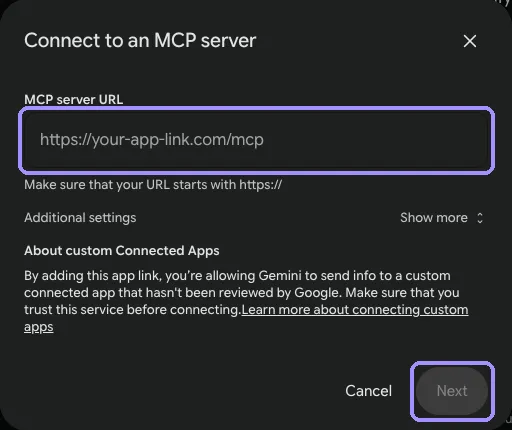
- Open Gemini on the web (gemini.google.com) on a computer. Custom apps can’t be added from the phone app.
- Open Customize → Connectors and click + Custom.
- Paste the URL
https://japka-app.com/mcpand click Next. - A Japka window opens. Sign in with the same Google, Apple or email account you use in the app.
- Press Allow.
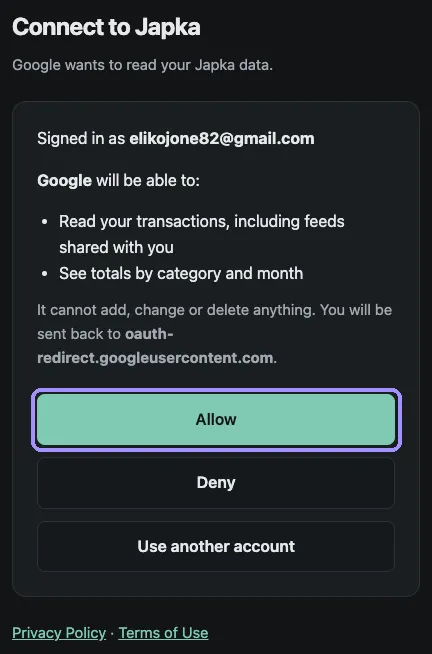
That’s it. In a chat, start your question with @Japka, for example “@Japka What’s my savings rate for the last 3 months?” Japka now works in Gemini on the web and in the Gemini app on your phone (Gemini Apps Help).
Ask Gemini about your money
Once Japka is on, ask in plain language:
- “How much did we spend in September, and on what?”
- “What were my 5 biggest expenses this month?”
- “Compare my food spending in August and September.”
- “What’s my savings rate for the last 3 months?”
- “Based on my spending, suggest a realistic monthly budget.”
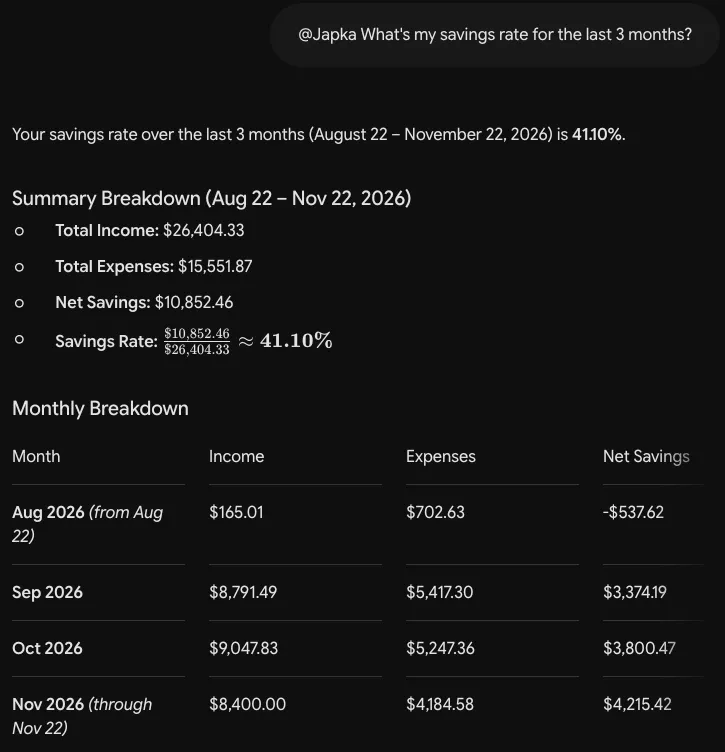
For a full routine, see AI prompts for a monthly money review. Questions about a partner’s spending work when you share a feed.
Troubleshooting
- No “+ Custom” button. Use the website on a computer, sign in with a personal Google account and turn on Gemini Apps history. The feature may still be rolling out in your country.
- Japka isn’t in the phone app. Add it once on the web first; it then shows up in the app.
- Wrong or empty numbers. Make sure you signed in with the same Google, Apple or email account you use in the Japka app.
- “Japka usage limit reached”. Fair-use limits keep the service fast for everyone. Wait a little and ask again.
- Sign-in window doesn’t open. Allow pop-ups for the Gemini site, then reconnect.
Privacy and safety
Gemini reads your Japka data only when a question needs it, never in the background. Feeds others shared with you are included, labeled with the owner’s name. What Gemini reads is sent to Google and handled under its privacy policy; Japka’s side is in our privacy policy. To keep everything on your phone instead, use the on-device AI assistant. For the bigger picture, see is it safe to give AI your financial data.
Other AI chats
Japka works the same way in ChatGPT, Claude, Grok, Perplexity. All of them are covered in how to add Japka to your AI chat.
FAQ
Can Gemini change or delete my transactions?
No. The Japka connection is read-only. Gemini can look up transactions and totals when you ask, but it can never add, edit or delete anything.
Do I need a paid Gemini plan?
Custom apps need a personal Google account, not a work or school one, with Gemini Apps history turned on. Availability can depend on your country and plan.
Is the Japka side free?
The connection is part of Japka Premium. Logging, summaries and charts in Japka stay free.
How do I disconnect Japka from Gemini?
On Gemini on the web, open the apps settings, select Japka and remove it. Deleting your Japka account also revokes every AI connection.